When a project changes, updating items one by one is tedious. You moved apartments and now everything has a new room name. You decided to track purchase dates and need to add that field to two hundred existing items. You sold a batch of items and want to mark them all as sold. Retinelle’s batch actions let you select multiple items and update them in one operation.
How batch editing works
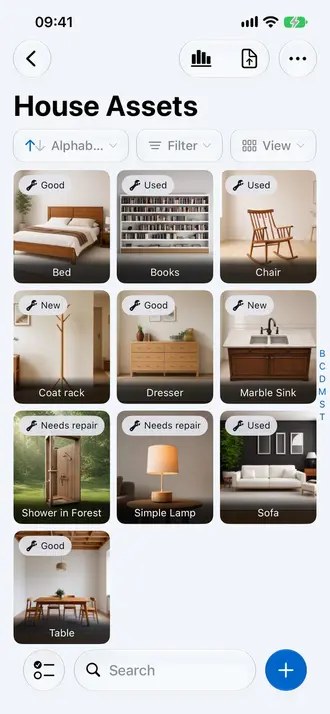
- Enter selection mode. Long-press an item or use the selection button to start selecting.
- Tap items to select them. A checkbox appears on each item. Select as many as you need, or use “Select All” to grab everything in the current view.
- Choose an action. The action bar appears at the bottom with available operations: update a field value, move to another project, share, or delete.
What you can do in bulk
- Update a field value. Set a custom field to the same value on all selected items. For example, set “Room” to “New apartment - Living room” on all items you just moved.
- Move items to another project. Reorganize by moving selected items from one project to another.
- Share items. Send the selected items together instead of opening and sharing each one separately. Review the selection before continuing to the system share sheet.
- Delete items. Remove selected items permanently. A confirmation prompt prevents accidental deletion.
When batch editing saves time
- After a move. Items in “Old apartment” need a new room assignment. Select them by room and update the field in bulk.
- Collection management. Mark a group of items as “for trade” or update their condition after inspection.
- Project cleanup. Remove duplicate entries or items you no longer need to track.
- Status changes. Mark a batch of items as sold, donated, or lent out.
Combining with filters
Batch editing works on whatever is currently visible in your list. Apply a filter first, then select all visible items and update them together. For example:
- Filter by “Room: Garage”.
- Select all.
- Update “Status” to “Moved to storage”.
This three-step workflow replaces what would otherwise be dozens of individual edits.
The same approach works for sharing. Filter the list to the items a recipient needs, select the visible results, and share that focused set. Items outside the current selection are left out.
Related features
- Search and Filter Your Inventory to narrow the list before batch editing
- Add Custom Fields to Your Inventory to define the fields you update
- All features
Feature in practice