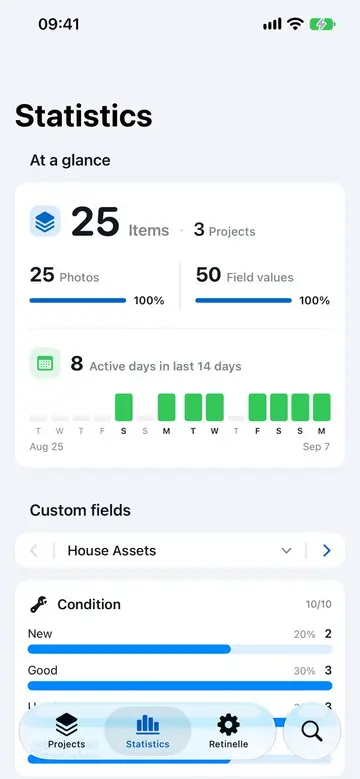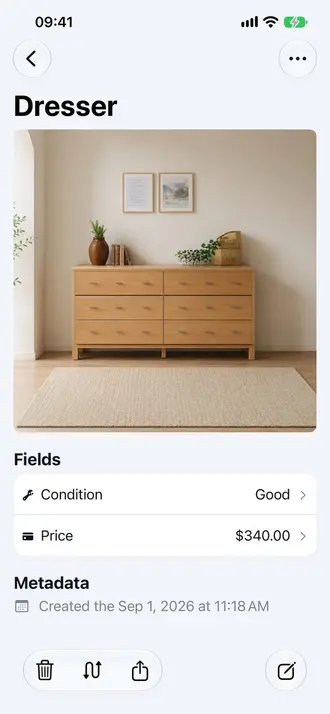
Photos tell you what an item looks like. Custom fields tell you everything else: what it is worth, where it is, when you bought it, whether the warranty is still active, and whatever else matters for your project. Retinelle lets you define your own typed fields so each inventory captures exactly the information you need.
Field types
Retinelle supports seven field types, each designed for a different kind of data:
- Text. Free-form notes. Use for brand names, descriptions, notes, or anything that does not fit a pattern.
- Number. Numeric values. Use for quantities, dimensions, weight, or counts.
- Currency. Monetary values with a currency symbol. Use for purchase price, replacement cost, appraised value.
- Date. Calendar dates. Use for purchase date, warranty expiration, or last inspection.
- Enum (dropdown). A fixed set of choices you define. Use for condition (new / good / fair / poor), room (kitchen / bedroom / garage), status (owned / lent / sold), or any category with a known set of options.
- Boolean (yes/no). A simple toggle. Use for warranty active, insured, photographed, packed, donated.
- Code (barcode, QR code). Scan a barcode, QR code, or other code with your device’s camera. Use for product barcodes, serial number labels, or asset tags.
How to set up custom fields
- Open a project. Custom fields are defined per project, so each project can have its own set of fields.
- Add fields. Choose the field type, give it a name, and configure any options (for enum fields, define the list of choices).
- Fill in fields on each item. When you create or edit an item, the fields you defined appear in the detail screen. Fill in what you know; leave the rest blank.
Using custom fields to filter and sort
Once items have field values, you can filter and sort by those fields. This is where custom fields become powerful:
- Show only items worth more than $500.
- Sort by purchase date to find the oldest items.
- Filter by condition to find items that need repair.
- Group by room to see what is in each part of the house.
- Show only items with an active warranty.
The same filters apply when you export, so your PDF or spreadsheet reflects exactly the subset of data you need.
Real-world examples
Home insurance inventory. Fields: purchase price (currency), purchase date (date), room (enum: living room / bedroom / kitchen / garage), serial number (text), insured (boolean).
Moving checklist. Fields: box number (number), destination room (enum: new living room / new bedroom / storage), fragile (boolean), packed (boolean).
Collection catalog. Fields: condition (enum: mint / near mint / good / fair), acquisition date (date), estimated value (currency), for trade (boolean).
Rental property. Fields: room (enum), condition (enum), replacement cost (currency), last inspected (date).
Fields in exports
Custom fields appear in both PDF and spreadsheet exports. In a PDF, you can show up to two fields as their own columns; the remaining fields are summarized alongside each item. In a spreadsheet, every field becomes a column. This means the structure you define in the app carries through to the documents you share.
Related features
- Summarize Custom Fields with Insights for totals and patterns
- Search and Filter Your Inventory to filter by field values
- Export to Spreadsheet for structured data export
- All features
Feature in practice