Your inventory represents hours of work: photographing items, adding details, organizing projects. Losing that data would mean starting over. Retinelle’s backup and restore feature lets you save selected projects to a file you control, and restore them whenever you need to.
How backup works
- Open the backup screen. Find it in the app settings.
- Choose the projects. Include every project or select only the catalogs you want to archive.
- Create a backup. The app packages the selected projects, items, photos, and custom fields into a single backup file.
- Save the file. Choose where to store it: on your device, in your Files app, on a computer via AirDrop, or on an external drive.
The backup file contains the selected projects, their items and custom fields, and the photos that Retinelle can copy successfully. If a photo is unavailable while the archive is created, Retinelle reports how many were omitted when the backup is ready.
How restore works
- Open a backup file. Tap the backup file on your device or import it from Files.
- Choose how to restore. Decide whether matching projects should be replaced and whether archived app-level settings should replace the current settings.
- Your inventory is restored. The projects, items, fields, and included photos are recreated from the archive. If a backup reported omitted photos, those files are not available to restore.
When to create a backup
- Before a major edit. About to reorganize a large project? Back up first so you can undo if needed.
- After completing a project. Finished documenting your home for insurance? Back up the result.
- Before switching devices. Moving to a new iPhone? Back up on the old one, restore on the new one.
- Periodically. Set a reminder to back up monthly or quarterly. Treat it like any other important data.
Transferring between devices
Since Retinelle does not use cloud sync, backup and restore is the way to move selected projects between devices:
- Back up on device A.
- Transfer the backup file to device B (AirDrop, email, shared folder).
- Restore on device B.
This works between iPhone, iPad, and Mac. The backup format is the same across all platforms.
Auto-backup
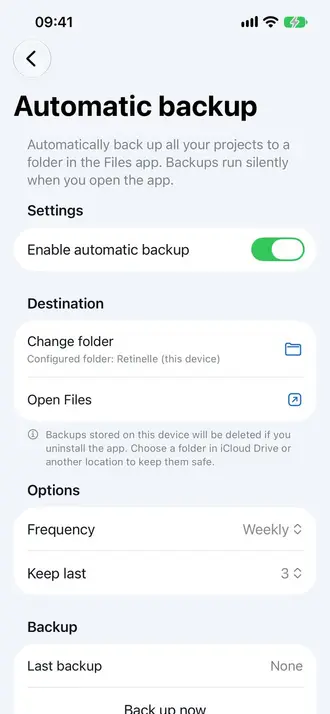
Retinelle can create automatic backups on a schedule. Enable auto-backup in settings and the app will save an archive periodically to the destination you choose. This provides a safety net if you forget to create manual backups.
Project and branding choices
Restore keeps you in control of conflicts. Matching project identifiers can replace the local versions, while other projects remain untouched. You can separately restore app-level document-branding settings such as the logo, footer, and colors. Other device preferences are not presented as part of that branding option.
Related features
- Offline-First Privacy to understand how data is stored locally
- Export Your Inventory to PDF for shareable document exports
- All features