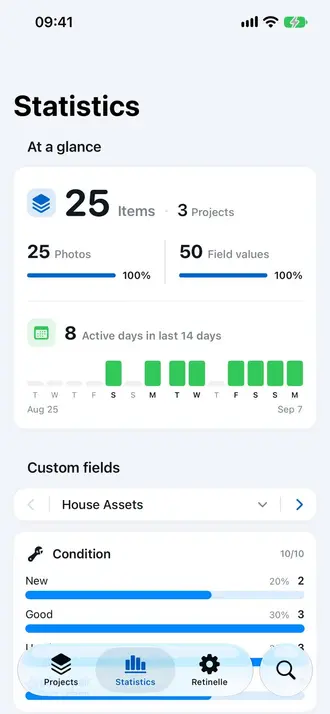
Once your inventory has structured data through custom fields, the next question is: what does that data tell you? Retinelle’s field insights summarize your custom fields so you can see totals, counts, and patterns without manually counting items or adding up values.
What field insights show
For each custom field in your project, insights display a summary appropriate to the field type:
- Currency fields. Total value, average value, highest and lowest values. See at a glance what your inventory is worth.
- Number fields. Sum, average, range. Useful for quantities, dimensions, or counts.
- Enum fields. Count per category. See how many items are in each room, how many are in each condition level, how many are marked for sale.
- Boolean fields. Count of true vs. false. How many items are insured? How many are fragile? How many are packed?
How to use insights
- Open a project. Navigate to the project you want to analyze.
- Open insights. The insights view shows a summary of all custom fields defined on the project.
- Read the summaries. Each field gets its own summary card with the relevant statistics.
Practical uses
Insurance preparation. Add a “Replacement cost” currency field to every item. The insights view can total the values you entered and help you prepare a summary for an insurer. It does not verify those values or determine what an insurer will accept.
Moving progress. Add a “Packed” boolean field. Check items off as you pack them. The insights view shows what percentage is packed versus still out.
Collection overview. Add a “Condition” enum field with values like mint, good, fair, poor. The insights view shows the distribution—for example, it might show that 60% of a collection is in good condition and 15% needs attention.
Room-by-room breakdown. Add a “Room” enum field. The insights view shows how many items are in each room, helping you plan which areas to inventory next.
What affects a summary
Insights calculate from the values currently stored in the project. Blank fields are not inferred, and an outdated price or incorrectly selected category will affect the result. Use consistent field types and units, review unusual minimum or maximum values, and treat the summary as a view of your records rather than an independent appraisal.
When you need item-level detail, return to the project list, apply a filter, and inspect the matching entries. The summary helps identify a pattern; the underlying items explain it.
Insights and privacy
All insights are computed locally on your device. No data is sent anywhere for analysis. The summaries are generated from the same data you already stored in the app.
Related features
- Add Custom Fields to Your Inventory to define the fields that insights summarize
- Export Your Inventory to PDF to include summaries in a shareable document
- All features