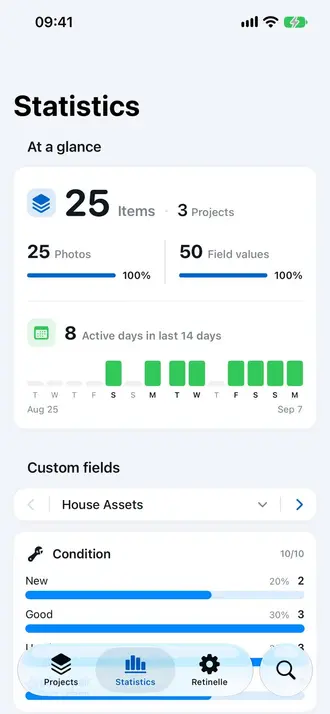
Inventory Insights gives you a quick overview of how your Retinelle catalog is growing. See usage and storage statistics without opening every project or counting items manually.
See the whole catalog
The insights screen summarizes projects, items, photos, and the storage used by your inventory. It is useful when you want to understand the overall size of a catalog, check whether a long capture session added everything expected, or identify why the app is using more space.
The figures cover the catalog currently available to Retinelle on that device. They are descriptive totals, not estimates or business-performance metrics. If you delete an item or remove photos, the corresponding totals and storage figure change with the catalog.
Questions the overview can answer
- How large is the catalog? Compare project, item, and photo totals without opening projects individually.
- Did a capture session add the expected records? Check the item and photo counts after documenting a room, shelf, or collection.
- What is taking space? Use the storage total as a starting point when reviewing photo-heavy projects or preparing a backup.
- Is the inventory ready to protect? A growing catalog is a useful prompt to create an up-to-date backup and store that backup somewhere safe.
Inventory insights and field insights
Inventory Insights covers app-wide usage and storage and is available for free. Field Insights is a separate Retinelle Plus feature that creates charts and summaries from the custom fields inside an individual project.
Use the overview for questions such as “How many items have I recorded?” and field insights for questions such as “How are these items distributed by condition?” or “What is their total value?”
Neither view changes your items. Inventory Insights reports catalog-level totals, while Field Insights calculates summaries from the structured values you have entered in one project.
Use the totals as a checkpoint
The overview is most useful when you compare it with a number you already expect. If you photographed 24 boxes, for example, check that the project and item totals reflect the work you completed. A mismatch tells you where to review the catalog; the overview does not identify missing objects by itself.
Storage usage is also a checkpoint rather than a cleanup recommendation. More photos naturally require more space, especially when each item includes several angles. Review the underlying projects before deleting anything, and create a backup first when the records would be difficult to recreate.
Related features
- Organize Inventory by Project to keep a growing catalog manageable
- Field Insights for project-specific custom-field charts and summaries
- Backup and Restore Your Inventory to protect a large catalog
- All features